5 Signs Your Computer May Have a Virus (And What to Do Next)
5 Signs Your Computer May Have a Virus (And What to Do Next)

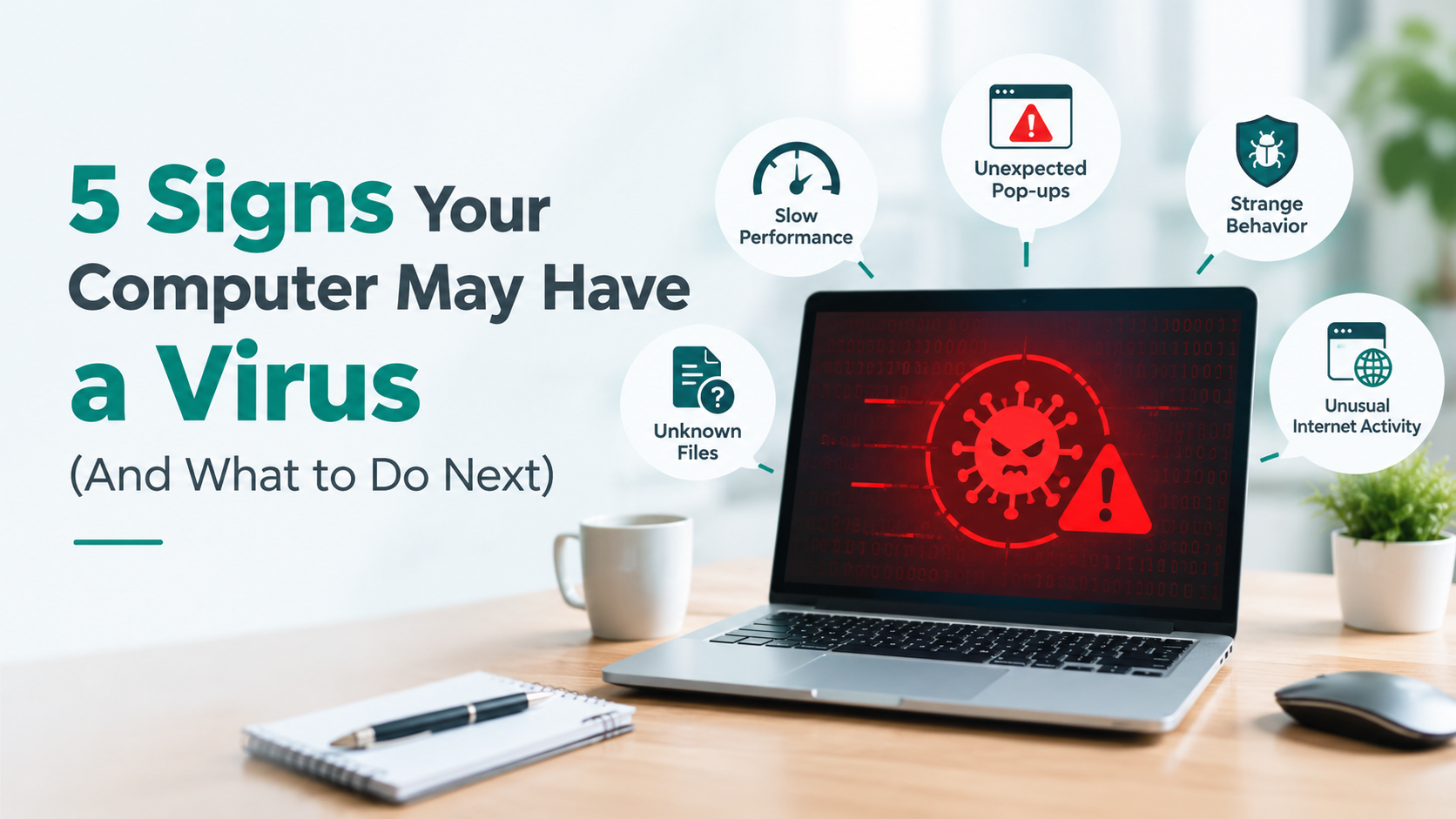
5 Signs Your Computer May Have a Virus (And What to Do Next)
Your laptop was fine yesterday. Today it takes five minutes to open a folder, a strange pop-up keeps appearing, and your browser opens a page you never asked for. Sound familiar? These are classic signs of viruses in computer systems, and they are easy to dismiss as a slow day until files go missing or passwords get misused. This guide covers the five signs worth taking seriously, shows you how to separate a real infection from an ordinary slowdown, and explains what to do next.
5 Signs of a Virus in Your Computer You Should Not Ignore
No single symptom proves an infection, but these five deserve attention, especially when two or more show up together.
1. Sudden slowness with no clear reason
Malware quietly borrows your processor, memory and disc. If a machine that was quick last week now crawls at startup or freezes while opening simple apps, pay attention.
2. Pop-ups, redirects and a changed browser
Ads that appear on their own, a homepage you never set, or searches that land on odd websites usually point to adware or a browser hijacker. A loud "virus detected" pop-up is often part of the trick.
3. Programs or toolbars you did not install
Unfamiliar apps launching at startup, or new toolbars in your browser, often sneak in with free downloads.
4. Files that vanish, rename themselves or refuse to open
Missing documents, strange file extensions or folders that suddenly will not open can mean malware is damaging or locking your data. Treat this one as urgent.
5. Your antivirus is off, outdated or will not open.
Many threats try to switch protection off first. If your security program disables itself, refuses to update or fails to install, something may be interfering.
Virus or Just an Ageing Computer? Quick Checks First
Not every slow computer is infected. A nearly full drive, too little RAM, dozens of startup apps or simple dust and age can cause the same symptoms. A few minutes of checking saves a lot of worry.
A two-minute check you can do right now
Press Ctrl + Shift + Esc to open the Task Manager. Leave the computer idle for a minute and sort the Processes tab by CPU, Memory, Disk and Network. If something you do not recognise keeps using a large share while you are doing nothing, note its name. Then open the Startup tab and look for unknown entries. Finally, open this PC and check free storage; under ten percent free can slow anything down.
As a rule of thumb, one symptom on its own often means a hardware or settings issue. Two or three together, such as pop-ups plus a switched-off antivirus, make an infection far more likely.
What to Do Next: A Step-by-Step Plan
If you suspect an infection, work through these steps in order.
- Disconnect from the internet. Turn off Wi-Fi or pull out the LAN cable so the malware cannot send data out or spread.
- Save what matters. Copy only your documents and photos to an external drive. Do not copy programs or installers.
- Restart in Safe Mode. Hold Shift, click Restart, then choose Troubleshoot, Advanced options, Startup Settings and Restart. Press 4 to boot into Safe Mode.
- Run a full scan. Use your installed antivirus, such as Quick Heal or Kaspersky, or run a Microsoft Defender Offline scan from Windows Security.
- Remove what looks wrong. Uninstall unknown apps from Settings and delete suspicious browser extensions.
- Change your passwords. Do this from a different, clean device, starting with email and banking.
Mistakes to avoid
Do not click a "virus detected" pop-up, and never pay or give remote access to a caller who says your PC is infected. Avoid running two antivirus programs together, since they can clash. And if symptoms return after a clean scan, do not ignore them.
When It Is Time to Call a Professional
Some infections are stubborn. Consider expert help if your antivirus will not open, a scan keeps finding the same threat, the computer will not start, or a message demands money to unlock your files. The same goes for any work laptop holding client or accounts data, where a wrong move can be costly.
If you are in Hyderabad, doorstep services such as GeekOnDemand's virus removal and antivirus setup send a verified technician to homes and offices in areas like Madhapur, Gachibowli and Kondapur, so you do not have to carry your machine to a shop. A good technician will also check that your data is intact and explain what caused the problem. Whoever you choose, ask what they will scan, what they will remove, and which antivirus they will set up afterwards.
How to Keep Viruses Away in Future
Prevention is mostly a habit.
- Install Windows and app updates promptly, since they close known gaps.
- Download software only from official websites or app stores.
- Think twice before opening email attachments, even from known contacts.
- Scan pen drives before opening anything on them.
- Keep one trusted antivirus active and updated, whether Windows Security, Quick Heal or Kaspersky.
- Back up important files to an external drive or cloud storage, so the worst case is an inconvenience, not a disaster.
- Use a standard user account for daily work and keep the admin login for installations.
None of this is complicated, but doing it consistently is what keeps a computer healthy for years.
5 FAQs with Final Thoughts
Q: How can I check if my laptop has a virus for free?
A: Open Windows Security, go to Virus & threat protection and run a Full scan. For a deeper check, choose Microsoft Defender Offline scan, which restarts the laptop and scans before Windows loads. You can also review Task Manager for unfamiliar programs using a lot of CPU or network while the laptop is idle.
Q: Why does my computer show pop-ups even when the browser is closed?
A: This usually means adware or another unwanted program is running in the background. Check your installed apps and startup list for anything you do not recognise, then run a full antivirus scan. Never click the pop-up itself, as it often leads to fake fixes.
Q: Can I remove a virus without formatting my computer?
A: Often, yes. Disconnecting from the internet, booting into Safe Mode and running a full scan removes many infections. Formatting is a last resort for deeply embedded malware, and you should back up personal files first.
Q: Is Windows Security enough to protect my computer?
A: For most home users, Windows Security gives solid basic protection when it is switched on and updated. Some people add Quick Heal or Kaspersky for extra features. Whichever you pick, use only one real-time antivirus at a time.
Q: Where can I get virus removal done at home in Hyderabad?
A: Several IT support providers in Hyderabad offer doorstep virus removal. Choose one that uses verified technicians, explains the scan and cleanup process, and never asks for remote access after a cold call. It also helps to ask which antivirus they will set up once the cleanup is done.
Final Thoughts
Most computers show clear hints before real damage begins: slowness, odd pop-ups, missing files or a silent antivirus. Notice them early, disconnect, scan and change your passwords, and the problem is usually manageable. If it feels bigger than you can handle, getting an expert to look at it is a sensible step, not a failure. Stay calm, act in order, and your computer can be back to normal sooner than you think.
Tags
Related Blogs
Laptop Battery Draining Fast or Not Charging? Fixes

Warranty vs. Third-Party Repair: What Businesses Should Know
Software Installation Service in Hyderabad: A Complete Guide for Home and Office Users
Best Doorstep IT Tech Support in Hyderabad (2026 Guide)
Wireless vs. USB Printer Setup for Home Offices